Order Additional Decals Page
To order additional (or replacement) decals, select the Order Additional Decals in the Decals section of the application.
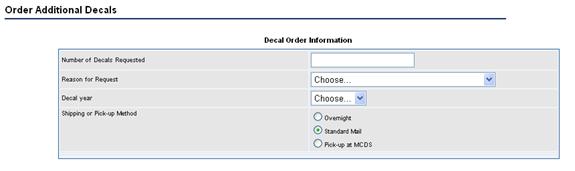
|
Ordering Decals Elements Label Description |
|
|
Number of Decals Requested: |
Data Field (numbers) Enter the number of decals the taxpayer is requesting. |
|
Reason for Request: |
Dropdown menu Open the dropdown menu and select the appropriate reason (or the closest to it) from the list. Options include: New Vehicle / Fleet Replacement Decals: Defective Decals Replacement Decals: Stolen Decals Replacement Decals: Accident Replacement Decals: Lost Replacement Decals: Vehicle Maintenance |
|
Decal Year |
Select the decal year. Last year cannot be selected. Next year can only be selected after decals for next year become available. |
|
Shipping or Pick-up Method: |
Radio buttons The available options are Overnight, Standard Mail, or Pick-up at MCSD. Overnight: If Overnight is selected a dropdown menu is displayed to allow for selection of a shipping carrier (FedEx, UPS, DHL). Select the carrier from the list and enter the account number in the Delivery Service Account Number field Standard Mail: There are no additional options or configurations for Standard Mail. Pick-up at MCSD: If Pick-up at MCSD is selected a data field will display next to the button. Enter the name of the person who is authorized to pick up the package of decals. |
|
Cancel |
Button Press the Cancel button to return to the IFTA Homepage. |
|
Add Note to Log |
Button Press the Add Note to Log button to add a message to the log. Notes may be provided by the system or manually
added by a user. |
|
Submit |
Button If the information on the
page is correct, press the Submit button to complete the request. |